Archives: 2026-01-07

Prestashop csv import errors, common issues and solutions

PrestaShop CSV Import Errors: Common Issues and Solutions

As a PrestaShop store owner, manager, developer, integrator, or agency, you understand the importance of efficiently managing your product data.

One common task that many in the PrestaShop community face is importing CSV files to update products and prices, integrate supplier APIs, and streamline their e-commerce operations.

However, despite the benefits of CSV imports, users often encounter various errors that can hinder the process.

In this article, we will explore some common CSV import errors in PrestaShop and provide solutions to help you overcome these challenges.

1.

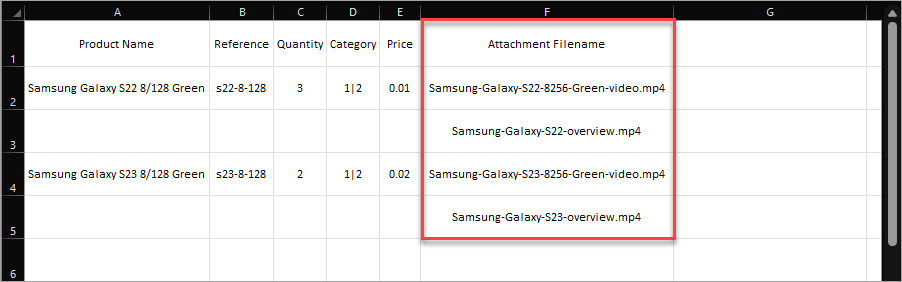
Invalid CSV Format: One of the most common issues users face when importing CSV files into PrestaShop is an invalid format.

This error can occur if the CSV file is not properly formatted or if there are inconsistencies in the data fields.

To resolve this issue, ensure that your CSV file adheres to PrestaShop’s formatting guidelines and that all required fields are accurately filled out.

2.

Data Mapping Errors: Another frequent issue that users encounter is data mapping errors during the import process.

This can occur when the column headers in the CSV file do not match the corresponding fields in PrestaShop.

[learn more at www.sitolog.com]

To avoid data mapping errors, double-check the column headers in your CSV file and make sure they align with PrestaShop’s data structure.

[read more at github.com]

3.

Duplicate Entries: Importing CSV files with duplicate product entries can lead to conflicts and errors in PrestaShop.

To prevent this issue, carefully review your CSV file for any duplicate entries before initiating the import process.

You can also use deduplication tools or features within your SaaS service to identify and eliminate duplicate entries automatically.

4.

Missing Data Fields: Sometimes, CSV import errors in PrestaShop occur due to missing or incomplete data fields in the CSV file.

Ensure that all necessary product information, such as SKU, name, price, and description, is included in the CSV file before importing it into PrestaShop.

Fill in any missing data fields to avoid errors during the import process.

[find out more at stackoverflow.com]

5.

Encoding Issues: Encoding problems can also cause CSV import errors in PrestaShop, especially when dealing with special characters or non-standard encoding formats.

To address encoding issues, ensure that your CSV file is saved in a compatible encoding format, such as UTF-8, to prevent data corruption or display errors.

By addressing these common CSV import errors and implementing the suggested solutions, PrestaShop users can streamline their product data management processes and enhance the efficiency of their e-commerce operations.

With the right tools and strategies, such as using a reliable SaaS service like psqqq.com, users can overcome these challenges and enjoy seamless CSV imports in PrestaShop.


Multi-tier pricing structure in prestashop, implementation guide

Multi-Tier Pricing Structure in PrestaShop: Implementation Guide

Implementing a multi-tier pricing structure in your PrestaShop store can be a game-changer when it comes to attracting customers and boosting sales.

With the right strategy in place, you can effectively cater to different customer segments and drive more revenue for your business.

[check details at ewonta.com]

In this guide, we will explore how you can set up a multi-tier pricing structure in PrestaShop using our SaaS service at psqqq.com.

1.

[check details at sabaylok.com]

Understand Your Customer Segments

Before you start implementing a multi-tier pricing structure, it’s important to understand your customer segments.

Identify the different types of customers that visit your store and their purchasing behavior.

This will help you tailor your pricing strategy to meet their needs and preferences.

[learn more at www.moesif.com]

2.

Define Your Pricing Tiers

Once you have a clear understanding of your customer segments, it’s time to define your pricing tiers.

Create different pricing levels based on factors such as customer loyalty, purchase frequency, or order value.

This will allow you to offer targeted discounts and promotions to each segment, encouraging them to make a purchase.

3.

Set Up Multi-Tier Pricing in PrestaShop

With our SaaS service at psqqq.com, setting up a multi-tier pricing structure in PrestaShop is quick and easy.

Simply log in to your account, navigate to the pricing settings, and create your pricing tiers.

You can customize each tier with specific discounts, minimum order quantities, and expiry dates to suit your business requirements.

4.

Test and Optimize Your Pricing Strategy

Once you have implemented your multi-tier pricing structure, it’s important to continually test and optimize your pricing strategy.

Monitor the performance of each pricing tier and make adjustments as needed to maximize your sales and profitability.

Our SaaS service at psqqq.com provides analytics tools to help you track the effectiveness of your pricing strategy and make data-driven decisions.

5.

Drive Traffic to Your Store

With a well-designed multi-tier pricing structure in place, you can now focus on driving traffic to your PrestaShop store.

Use SEO techniques to optimize your product pages for relevant keywords and attract organic search traffic from Google and Bing.

Leverage social media marketing, email campaigns, and other digital channels to promote your special pricing offers and generate buzz around your store.

In conclusion, implementing a multi-tier pricing structure in PrestaShop can help you attract more customers, increase sales, and maximize your revenue potential.

With our SaaS service at psqqq.com, you have the tools and resources you need to set up and manage a successful multi-tier pricing strategy.

Start maximizing your profits today with our easy-to-use pricing management solution.